Finding and refining
Find the recording you need and improve its details as you learn more.
Choose a view
Browse your Archive in Grid, List, or Details view. Use the view that suits the task: recognizing covers, scanning titles, or reading more information together.
Use Sort to change the order. Open a title to see its recording information and saved copies. Collections provide another starting point when you already know the group you want to explore.
Search and narrow the results
- Enter a query in Search titles and submit the search.
- Use the available facets to narrow by category, genre, credits, format, release details, dates, or quality.
- On a smaller screen, open the filters control to reach the facet drawer.
- Review the active filter chips. Remove a chip to loosen that constraint, or choose Clear all filters to remove the selected filters.
Multiple selections within one facet include any of those choices. Different facets work together. Copy-level conditions must match the same copy: a title with a CD and a vinyl copy will only match your selected format and condition when one copy satisfies both.
Use Not set where it is offered to find records with missing optional information. Clearing the search text keeps your filters, so check the chips when results are narrower than you expect.

- Check active chips. This view combines Popular music and Rock.
- Refine the results. Category, genre, format, and other facets narrow the records you browse.
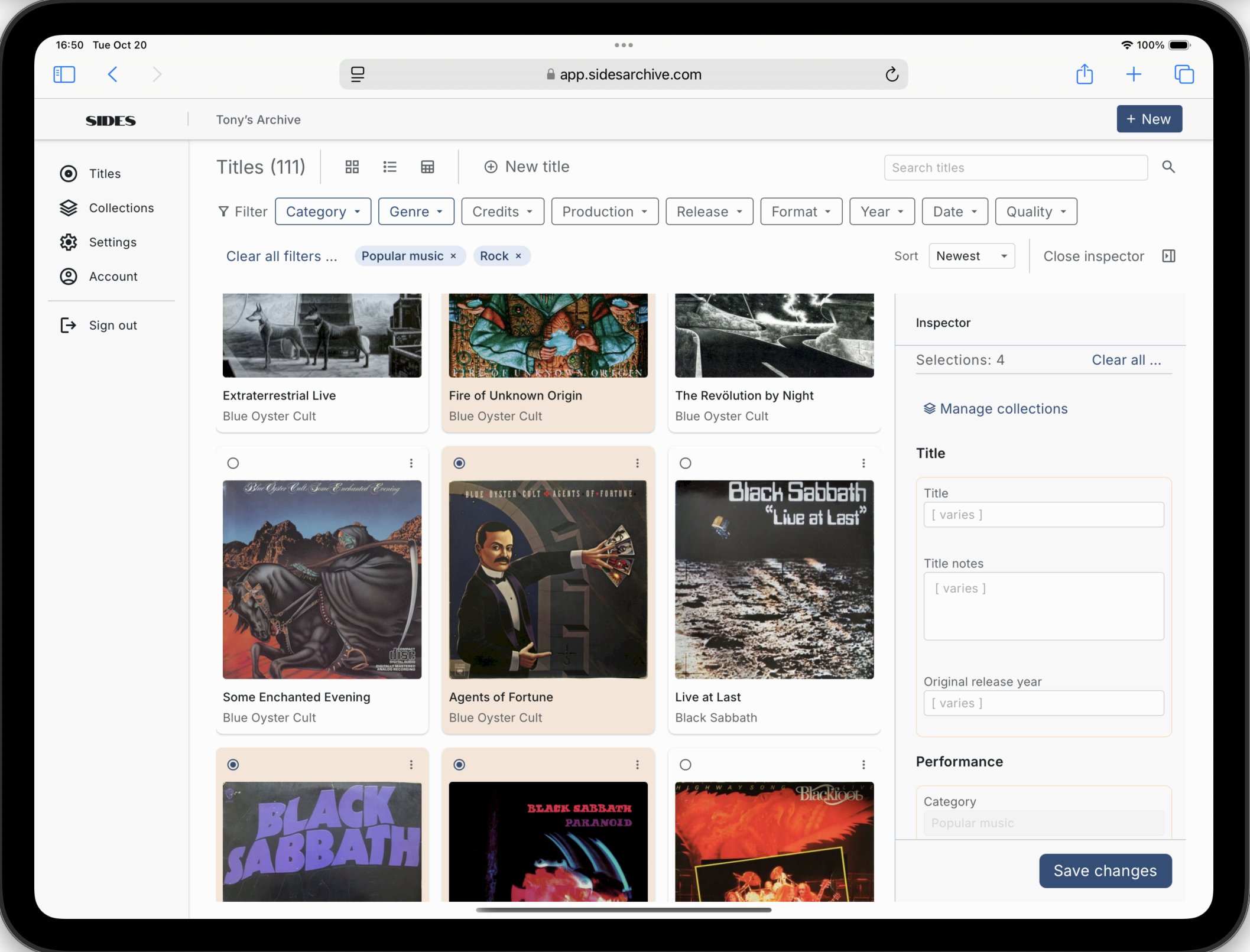
Inspect the title and its copies
Open the Inspector while browsing to compare selected copies, make focused batch edits, and curate Collection memberships. The Inspector guide explains selection, shared values, and safe batch changes. Open the full title when you want to work with one recording in detail.
Compare shared recording details with the release details of the physical copy in front of you. Titles and copies explains how those details fit together.
Edit existing details
- Open the title you want to refine.
- Choose the title edit action for shared recording information, or Edit copy details for the specific physical copy.
- Change the fields you can support with reliable information.
- Review the form and choose Save changes.
- Check the saved result before continuing.
For cover artwork, use Update image on the relevant copy and review the replacement. Keep copy-specific condition, purchase details, notes, and Location attached to the correct copy.
Refine at your own pace
Start with a useful question: which records are missing a year, which credits need checking, or which copies need condition details? Narrow the view, review the relevant records, and fill in what you can establish.
Keep uncertain optional values blank until you have better evidence. Use Collections to bring titles together for later review, or consult the MCP server guide if you want to work with your Archive through your own connected assistant.